How To initiate a Call
There are two ways of making calls from the system ;
- From the Casefile view
- From the Call Campaigns assigned
- From Softphone
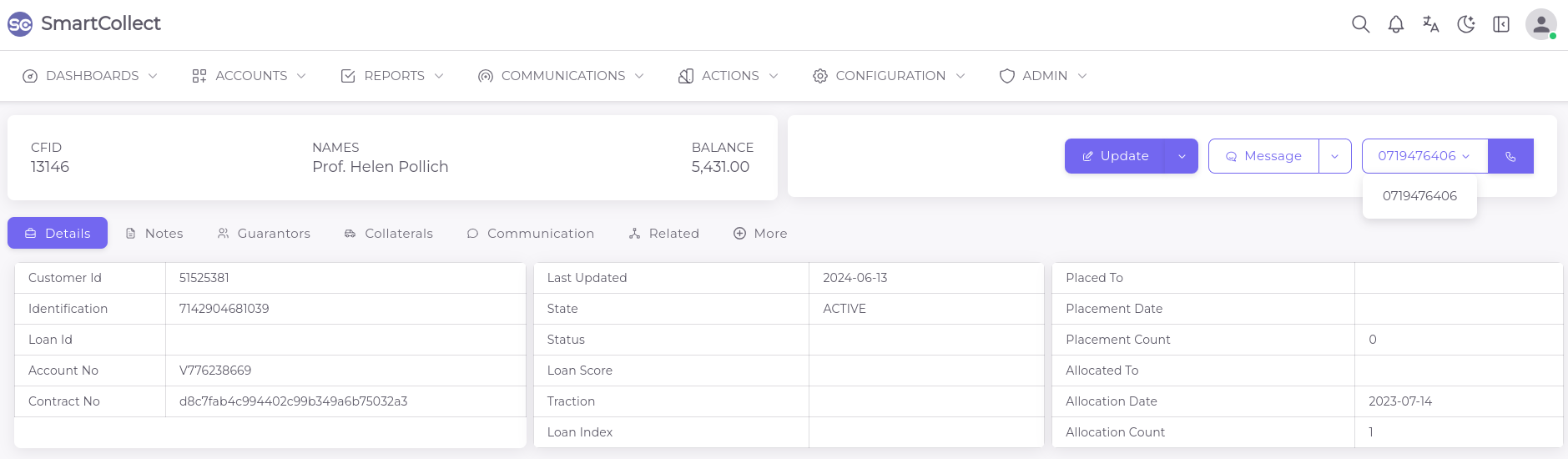
Call From 360 view
Once a logged in user is assigned a valid extension, a call icon will appear on their screen.This will activate a link next to the callbox section where you need to select the phone number then click on the call icon to call.
Call From Call Campaigns
When users are assigned a campaign, files are loaded into the campaign to be dialed based on the supervisor's strategy.For a normal user, they can see the files and campaigns from the Account Menu > My Campaign List. Once they join a campaign all other files will be hidden until they are done with the campaign files or pause from the campaign.
Call From Softphone
Once a user with an active extention number logs into smartcollect, a blue call icon similar to a headset is displayed on the bottom right hand side of the screen.From there a user can manually type in the phone number of the respective client/debtor to initiate the call. The softphone also gives access to missed calls, call history, contacts and scheduled callbacks. With the phone users get all functions similar to smartphone mobile handset where you can put calls on hold
Handling Inbound Calls
For incoming calls, the softphones pops up with a button to view casefile where the callers details will be populated.This takes away the manual search bit or pointless conversation of trying to ascertain who the caller is.